What Was Created
After using Create Beast, the selected scene object is a regular Unity GameObject named Beast.
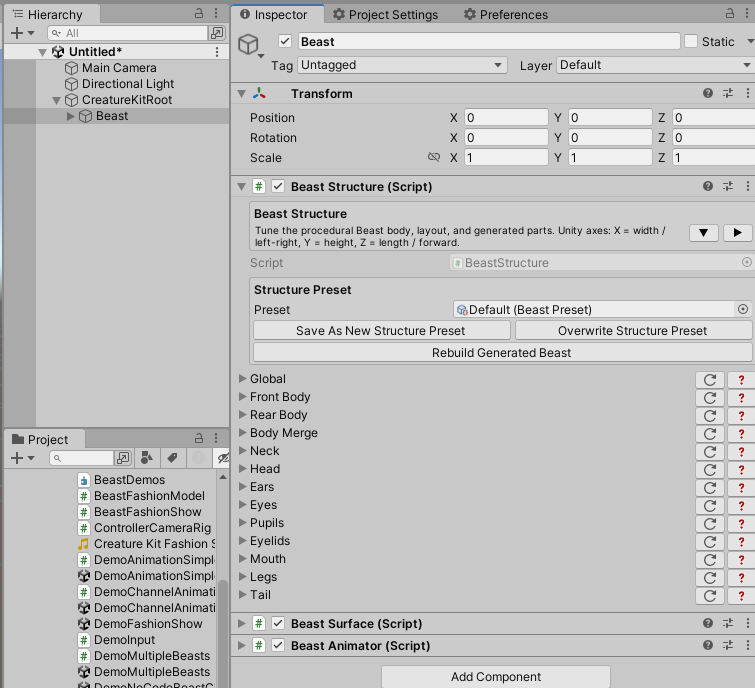
Scene Object
The Beast GameObject contains the BeastStructure, BeastSurface, and BeastAnimator components.
BeastStructure owns the generated shape and rig. BeastSurface owns the material slots and applies them to the generated parts.
BeastAnimator owns Beast clip playback, procedural channel animation, and direct channel poses.
The generated meshes live under a generated child hierarchy named Generated Beast. This child hierarchy is owned by Creature Kit and can be rebuilt.
Your own components, such as controllers, AI, gameplay scripts, cameras, or animation bridges, should live outside the generated hierarchy, usually on the Beast GameObject or a parent object.
Inspector
The BeastStructure inspector is organized around structure authoring:
| Area | Purpose |
|---|---|
Rebuild / Clear |
Recreate or remove only the generated Beast hierarchy. |
Presets |
Apply or save Structure presets. |
Global |
Shared structure settings such as scale, detail level, and shape profile. |
| Part foldouts | Body, head, eyes, ears, mouth, neck, legs, and tail. |
| Generated mesh stats | Quick feedback about generated renderers and triangle count. |
The BeastSurface inspector is organized around surface authoring:
| Area | Purpose |
|---|---|
Surface Preset |
Apply or duplicate a reusable material preset. |
Materials |
Assign explicit materials by generated Beast part family. |
What Is Not Created
The basic Create Beast menu does not create a player controller, AI controller, or camera rig. Those are application decisions.
New Beasts include BeastAnimator with Idle selected as the initial animation. Add BeastAnimationBridge when Unity Animation Clips, Timeline, Unity Events, or Visual Scripting should drive poses.
Select Animation
Select the Beast GameObject, then use:
Tools > Creature Kit > Beasts > Add Beast Animator To Selected Beast
Creature Kit searches from the selected GameObject to find the related BeastStructure. This means the menu still works if you selected the Beast itself, one of its generated children, or a parent object that contains a Beast.
If BeastAnimator already exists, this menu selects it instead of adding a duplicate. Use the component inspector to preview or play clip animation.
For no-code workflows, use:
Tools > Creature Kit > Beasts > Add Beast Bridge (no-code) To Selected Beast
This adds BeastAnimationBridge and also adds BeastAnimator if it is missing.