Material Slots
Beast Surface presets use one material slot per visible generated part family. The Per Part Materials foldout lets you inspect or override those material assignments directly.
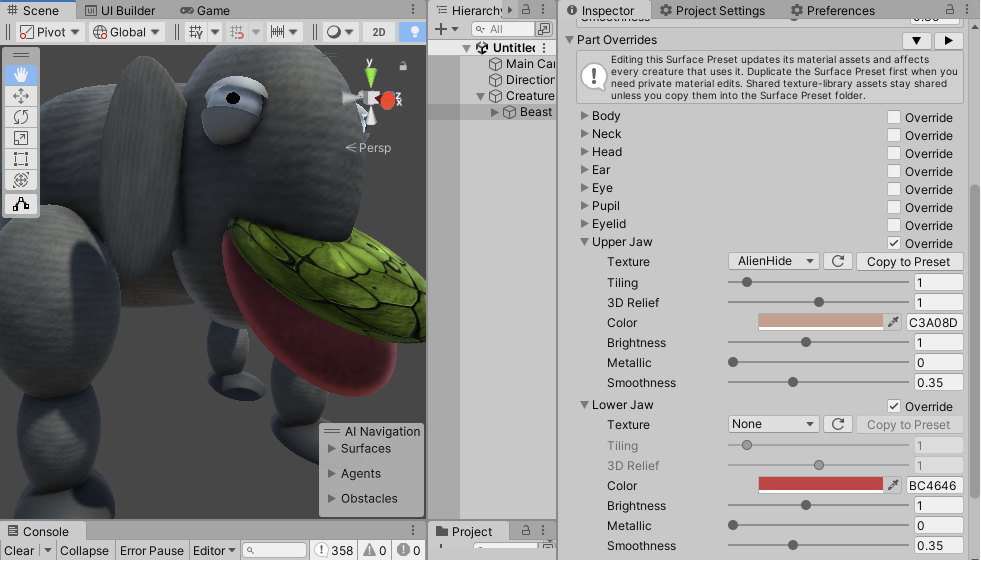
Slots
Common Beast material slots include:
| Slot | Used by |
|---|---|
| Body | Main body mesh. |
| Neck | Neck mesh. |
| Head | Head mesh. |
| Ear | Generated ears. |
| Eye | Eye surface. |
| Pupil | Pupil surface. |
| Eyelid | Upper and lower eyelids. |
| Jaw Upper | Upper jaw mesh. |
| Jaw Lower | Lower jaw mesh. |
| Leg Upper | Upper leg segments. |
| Leg Lower | Lower leg segments. |
| Foot | Feet. |
| Tail | Generated tails. |
Edit the duplicated materials directly when you need different colors, metallic values, smoothness, or shader properties.
Asset Organization
Surface presets remain owned by each creature family. Reusable texture sources are shared.
| Folder | Contains |
|---|---|
Assets/CreatureKit/Beasts/Presets/Surface |
Reusable BeastSurfacePreset assets. |
Assets/CreatureKit/Serpentine/Presets/Surface |
Reusable SerpentineSurfacePreset assets. |
Assets/CreatureKit/TextureLibrary |
Built-in CreatureSurfaceTextureProfile folders, each with its profile asset, albedo map, and optional normal map. |
Assets/CreatureKitUser/TextureLibrary |
Texture profiles imported or generated by the project user. This folder stays outside the installed Creature Kit content. |
Compatibility tags describe the intended mesh family without forcing the Surface implementations to share UV or material code:
Ovoidis prepared for ellipsoidal Beast parts.Long Partis prepared for axial parts such as a Serpentine body.Rawhas no family-specific deformation and can be tried on either family.
A profile can carry several tags. The browser filters by the current creature family, but it never prevents you from trying an untagged or differently tagged texture.
Texture Authoring
Surface presets can stay completely untextured. This is the recommended path for cartoon, low-poly, or very graphic creatures where simple colors are part of the style.
When you want a more organic look, click Choose... in Base Surface or an enabled Surface Override. A CreatureSurfaceTextureProfile references an albedo map, an optional normal map, normal strength, optional metallic/smoothness recommendations, U/V tiling recommendations, and compatibility tags.
Built-in texture profiles use four short name prefixes for quick sorting: Alien, Fur, Geo, and Skin. Examples include AlienFlesh, AlienCrackedClay, FurCheetah, FurCowLight, FurCowDark, FurTigerCoat, GeoPebbledHide, GeoRingSpots, GeoZebraSmoothU, GeoZebraSmoothV, and SkinElephant.
Applying a texture profile writes those values into regular Unity materials. Each family still owns its Surface preset, UV convention, shaders, and material application. The common profile is only the reusable texture source and metadata.
Texture Browser
The texture browser is a non-modal Editor window. You can orbit, pan, zoom, and otherwise inspect the Scene view while it stays open. It remains attached to the creature and part that opened it even if the Unity selection changes.
Use search, source filters (Built-in, My Textures, and Local), compatibility tags, and thumbnail cards to find a profile. Selecting a card previews it immediately on the real creature. The right pane contains the full application recipe:
- linked or independent U/V tiling;
- 3D relief;
- color and hexadecimal color;
- brightness;
- metallic and smoothness;
- optional
Copy texture to Surface Preset.
Apply commits one edit. Cancel, Escape, or closing the browser restores the exact preset and material state from before the browser opened. Copy texture to Surface Preset is performed only on Apply, never during a preview.
Import Your Own Texture
Open Tools > Creature Kit > Surface Textures..., use the Beast or Serpentine menu alias, or click Import... in the texture browser.
- Enter a profile name.
- Click
Choose...to select an albedo image from your computer. - Optionally choose a normal-map image.
- Choose one or more compatibility tags and set the recommended U and V tiling.
- Click
Create Texture Profile.
Creature Kit copies the source images into Assets/CreatureKitUser/TextureLibrary/<Name>, configures the optional normal image as a Unity normal map, and creates a reusable CreatureSurfaceTextureProfile. The new entry appears under My Textures when the browser refreshes.
After creating the profile, return to the browser and select it under My Textures. Duplicate the Surface Preset first when that preset is shared with other creatures: applying a texture edits the materials owned by that preset and therefore affects every creature that uses it.
The user library is not copied into the Creature Kit publication package. A Unity Player build still includes any custom image referenced by a material used in that application, as required to render the creature correctly.
The Surface Texture Importer is an Editor authoring host. Optional authoring extensions can add another source while producing the same common texture-profile result.
For Beast, choose Apply To before opening the browser:
Skin Parts, which writes body-like parts while leaving eyes, pupils, eyelids, jaws, and feet unchanged.All Parts, which writes every material slot.
Open Surface Overrides when one material slot needs an independent recipe. An override must be enabled before its Choose... button becomes available. Serpentine Body, future Head, and future Tail inherit the Base Surface by default; their overrides do not assume texture continuity between meshes.
Use Clear beside a compact texture field to remove albedo and normal maps while preserving its other appearance values.
When several slots should share a look, assign the same material or duplicate from a common source. When one part needs unique shader values, duplicate the preset first so that edits stay local to that Beast surface variant.